Many WordPress websites perform tasks automatically without the site owner doing anything manually. Things like publishing scheduled content, sending notifications, clearing temporary data, and updating certain records happen in the background through WordPress cron jobs. If you manage a website and notice delays in scheduled posts or missed automated tasks, checking these background processes becomes important. While learning about website management, many people also explore career paths such as Remote IT Jobs, where understanding automation systems can be surprisingly useful.
WordPress uses a built-in scheduling system known as WP-Cron. Unlike a traditional server cron, WP-Cron depends on website visits to trigger scheduled tasks. This setup works well for many sites, but it can sometimes cause delays, especially on websites with low traffic.
Table of Contents
How to Check WordPress Cron Jobs
The first step in learning How to Check WordPress Cron Jobs is understanding where these tasks are stored and how they are triggered. WP-Cron keeps a list of scheduled events inside the WordPress database. These events include plugin tasks, maintenance routines, scheduled posts, backups, and various automation functions.
When a visitor opens a page, WordPress checks whether any scheduled tasks are due. If an event needs to run, WP-Cron executes it. Checking these events helps identify failed tasks, plugin issues, and performance problems before they become larger concerns.
Why Website Owners Check WP-Cron Events
There are many situations where checking WP-Cron becomes necessary. A scheduled article may fail to publish. A backup plugin may stop running. Emails may not send on time. Sometimes these issues are caused by plugin conflicts, server limitations, or configuration errors.
Website administrators often face these situations while managing larger projects. Learning technical concepts is similar to exploring topics like can i learn UX without UI. At first, it seems complicated, but once the fundamentals are understood, troubleshooting becomes much easier.
WordPress cron jobs provide visibility into what the website is trying to accomplish automatically. When those tasks stop working, checking the cron queue is usually one of the first diagnostic steps.
Common Types of WordPress Cron Jobs
WordPress schedules many different background activities.
| Cron Event Type | Purpose |
|---|---|
| Scheduled Posts | Publishes content automatically |
| Plugin Updates | Checks update availability |
| Database Cleanup | Removes temporary records |
| Backup Tasks | Creates backups automatically |
| Email Notifications | Sends reminders and alerts |
| Security Scans | Checks website vulnerabilities |
| Cache Cleanup | Clears outdated cached files |
These scheduled tasks help maintain website automation and reduce manual workload.
Using WP Crontrol to View Scheduled Events
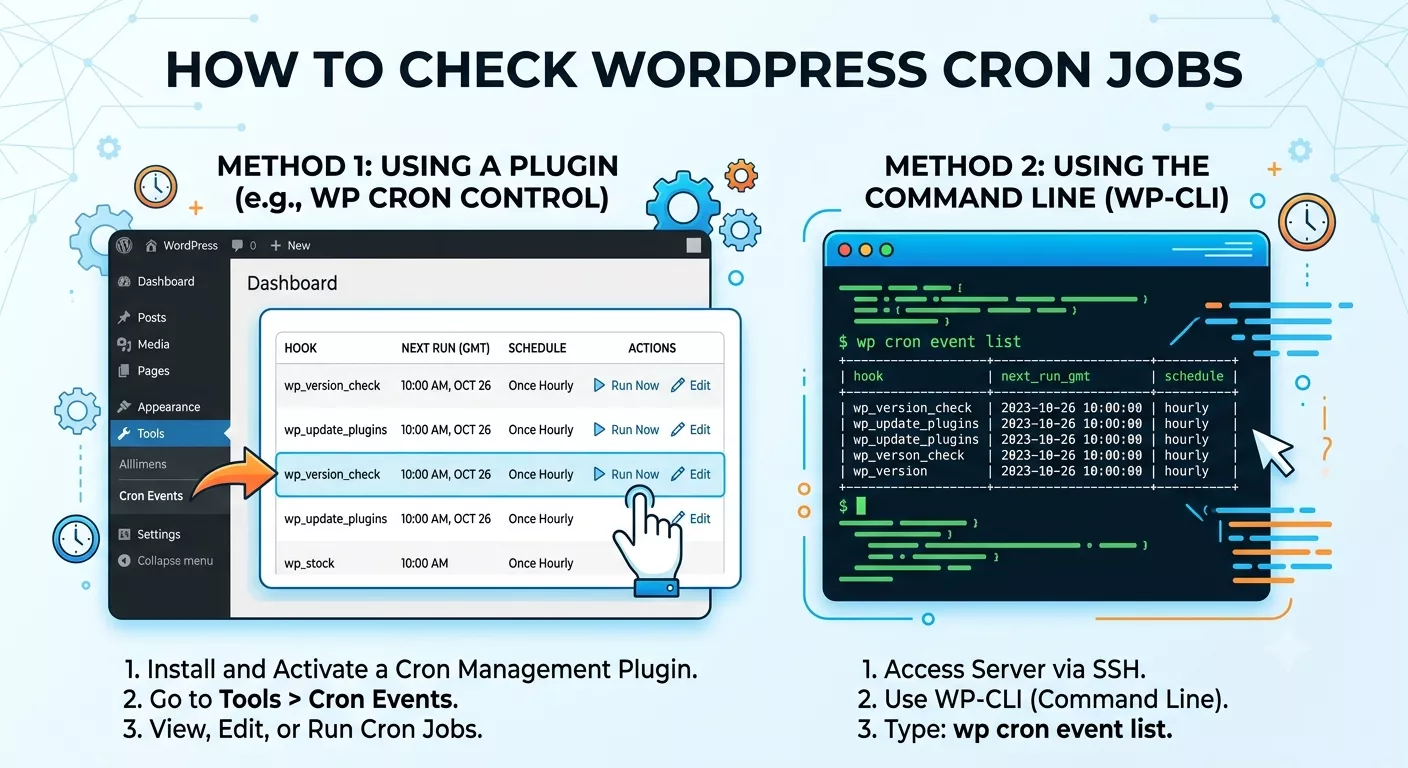
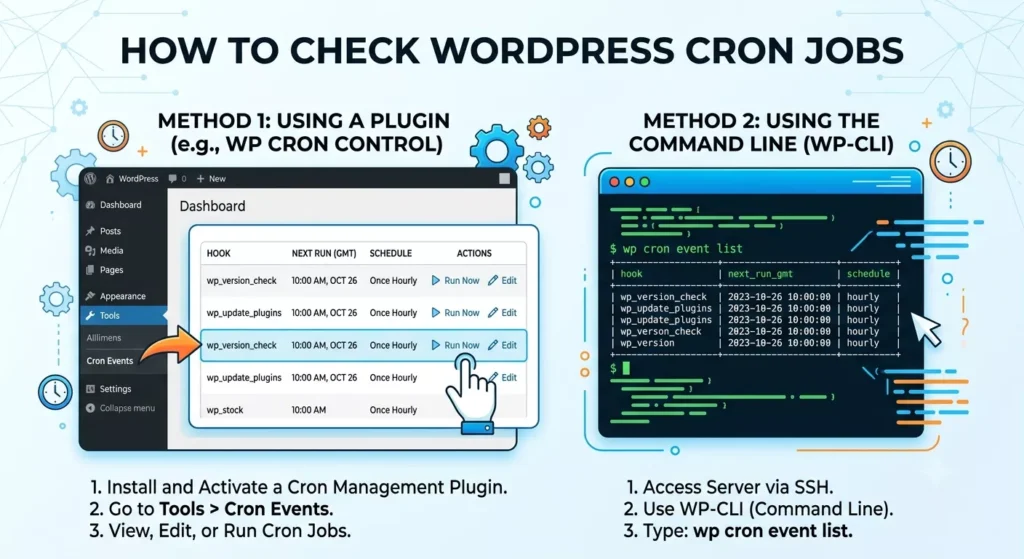
One of the easiest ways to check WordPress cron jobs is through the WP Crontrol plugin. Many developers use this plugin because it displays all cron events directly inside the WordPress admin dashboard.
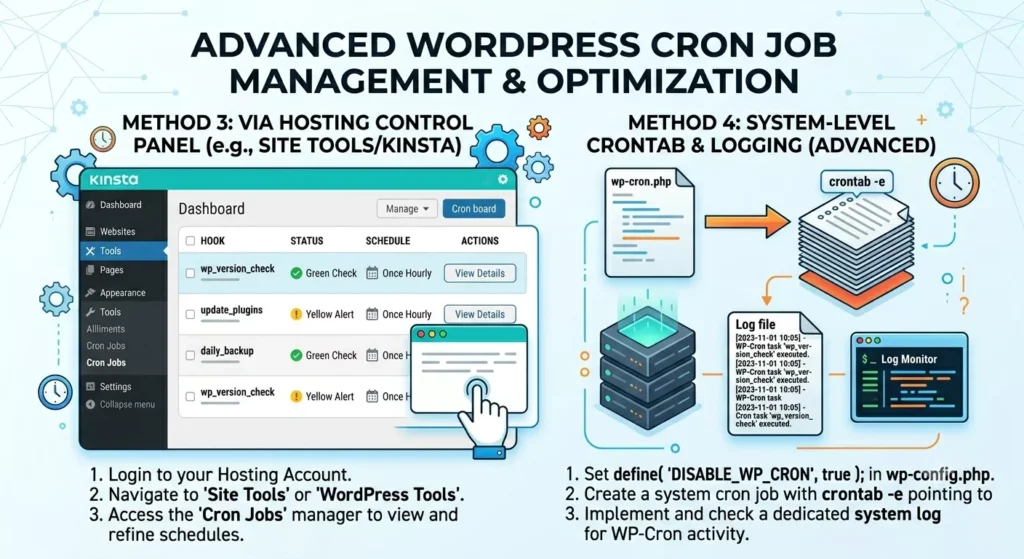
After installing WP Crontrol, a new section becomes available under Tools. Here you can view upcoming events, execution times, recurrence schedules, and hook names associated with WordPress plugins.
The plugin allows website owners to:
- View cron events
- Edit scheduled tasks
- Delete unnecessary events
- Add custom cron jobs
- Monitor failed schedules
WP Crontrol is often considered one of the most useful WordPress debugging tools available for administrators.
Looking at Scheduled Tasks Through the Dashboard
Not every website owner wants to inspect code or access databases. Fortunately, WP Crontrol makes the process visual and straightforward. If a plugin creates recurring tasks, those events will appear in the schedule list. This makes it easier to identify whether plugin conflicts or missed schedules are affecting the site.
Many beginners who start working with websites often transition into broader technical roles. Topics like ui ux designer with no experience frequently attract people who later develop an interest in website management and automation systems. A quick dashboard review can reveal hundreds of scheduled tasks operating behind the scenes.
Understanding How WP-Cron Differs From Server Cron
One source of confusion comes from the difference between WP-Cron and traditional server cron jobs.
| Feature | WP-Cron | Server Cron |
|---|---|---|
| Trigger Method | Website Visit | Server Schedule |
| Accuracy | Moderate | High |
| Traffic Dependent | Yes | No |
| Performance Impact | Possible | Lower |
| Reliability | Good | Better |
A server cron runs according to a strict timetable. WP-Cron relies on user visits. This distinction explains why scheduled posts sometimes fail on low-traffic websites.
Many experienced administrators disable WP-Cron and replace it with a real server cron for greater reliability.
Finding Missed Scheduled Posts
One of the most common reasons people investigate WordPress cron jobs is a missed scheduled post.
If a post remains unpublished despite being scheduled, several issues could be responsible:
- Plugin conflicts
- Theme conflicts
- Low website traffic
- Server resource limitations
- Database problems
Learning how cron events function helps identify the underlying cause. In website administration, understanding background systems is similar to using tools such as an how much ui ux salary on average calculator. The visible result is simple, but a lot happens behind the scenes to generate accurate information.
Checking cron events often reveals whether the publication task was triggered at all.
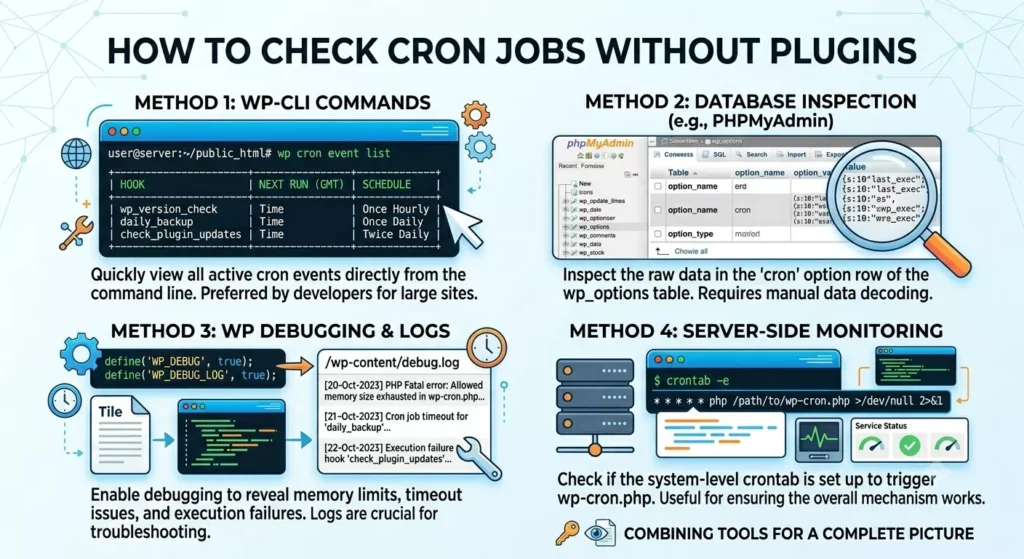
How to Check Cron Jobs Without Plugins
Advanced users sometimes prefer checking scheduled events manually.
Several methods exist:
- WP-CLI commands
- Database inspection
- Debug logging
- Server-side cron monitoring
WP-CLI offers commands such as:
wp cron event list
This command displays all active cron events directly from the command line.
Developers working on large websites often use this method because it provides quick access without opening the dashboard.
Monitoring WordPress Error Logs
Error logs provide another useful source of information.
When cron jobs fail repeatedly, error messages may appear inside:
- PHP logs
- WordPress debug logs
- Server logs
- Plugin logs
WordPress error logs can reveal memory limitations, timeout issues, and execution failures.
Combining log analysis with cron event inspection creates a much clearer picture of overall WordPress performance.
When Plugin Conflicts Cause Cron Problems
Many websites run dozens of WordPress plugins simultaneously. Each plugin may create its own scheduled tasks.
This increases the possibility of plugin conflicts.
For example:
- Two plugins may trigger similar hooks.
- A plugin update may break an existing schedule.
- A poorly coded plugin may overload WP-Cron.
Troubleshooting becomes easier once administrators can identify which plugin created the affected cron event.
People researching career paths such as ui ux designer jobs often discover that technical troubleshooting skills are valuable across many digital professions, including WordPress administration.
Understanding plugin behavior helps reduce recurring website automation problems.
Improving Website Automation Through Cron Management
Effective cron management supports website automation in several ways.
Regular monitoring helps:
- Improve WordPress maintenance
- Reduce failed tasks
- Increase scheduling reliability
- Improve WordPress performance
- Detect errors early
Automation becomes increasingly important as websites grow larger.
A small blog might have only a few scheduled tasks. A large membership platform may run hundreds of cron events every day.
Checking those schedules periodically prevents unexpected interruptions.
Signs That WP-Cron Is Not Working Properly
Several warning signs indicate potential WP-Cron issues:
| Symptom | Possible Cause |
|---|---|
| Missed Posts | Failed cron event |
| Delayed Emails | Scheduling issue |
| Failed Backups | Plugin conflict |
| Outdated Cache | Cron not running |
| Slow Website | Excessive scheduled tasks |
| Update Delays | WP-Cron failure |
These indicators should prompt a review of scheduled events.
When to Use a Real Server Cron
High-traffic websites often benefit from replacing WP-Cron with a server cron.
Advantages include:
- More accurate scheduling
- Reduced server load
- Better reliability
- Faster execution
- Improved WordPress performance
Many managed hosting providers recommend this approach for busy websites.
Technical professionals, including those searching for wordpress developer jobs, frequently encounter server cron configurations during website maintenance projects.
A server cron typically calls the wp-cron.php file at regular intervals without relying on visitors.
Best Practices for Managing WordPress Cron Jobs
Good maintenance habits reduce future issues.
Some practical recommendations include:
- Review cron events monthly.
- Remove unused plugins.
- Monitor WordPress error logs.
- Keep WordPress updated.
- Check scheduled posts regularly.
- Use WP Crontrol for visibility.
- Consider server cron implementation for larger sites.
These habits help maintain healthy task scheduling and consistent website automation.
Final Thoughts on Monitoring Scheduled Events
Learning how WordPress cron jobs work changes the way many people view website management. Tasks that appear automatic are actually coordinated through a scheduling system that depends on timing, plugins, database records, and server resources.
Checking cron events occasionally can prevent missed posts, failed backups, delayed emails, and other frustrating issues. Once you understand how WP-Cron operates, diagnosing problems becomes far less intimidating.
For anyone responsible for WordPress maintenance, knowing how to inspect scheduled tasks is a practical skill that pays off repeatedly. Whether the site is a small personal blog or a large business platform, keeping an eye on WP-Cron helps ensure the website continues running smoothly behind the scenes.